The Test Suite IDE
The IDE builds a TCK project in the browser. Each test shows as blocks and as YAML: change one, the other follows. It also compiles and runs.
Home · 3 · Hello, TestLab · Syntax cheat sheet
The screen
Open the Test Suite (box B of your handout) and click the Test Suite IDE icon on the
left. Open File takes a project .zip, a .yaml or a .tck.
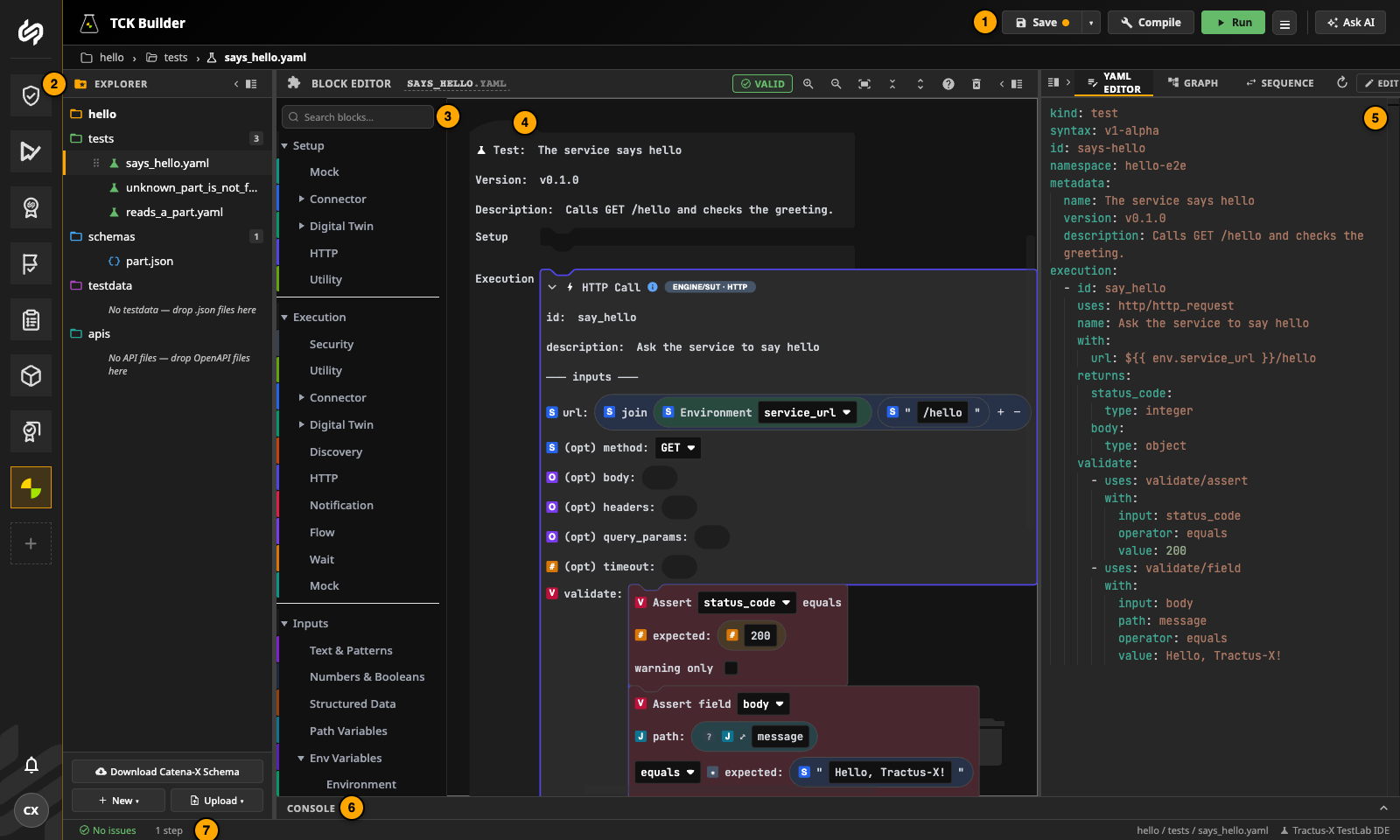
| Area | Use it to | |
|---|---|---|
| 1 | Top bar | Save, Compile, Run, ☰ project settings, Ask AI |
| 2 | Explorer | Open files. New ▾ → New Test adds a test. |
| 3 | Toolbox | Find blocks. Type in Search blocks… |
| 4 | Block editor | Edit the test as blocks |
| 5 | Side panel | YAML Editor, Graph, Sequence (Ctrl+Alt+B / ⌘+⌥+B) |
| 6 | Console | Read the log of a compile or run |
| 7 | Status bar | See the number of issues |
To write YAML instead of blocks: YAML Editor → Edit, type, then Save.
Variables
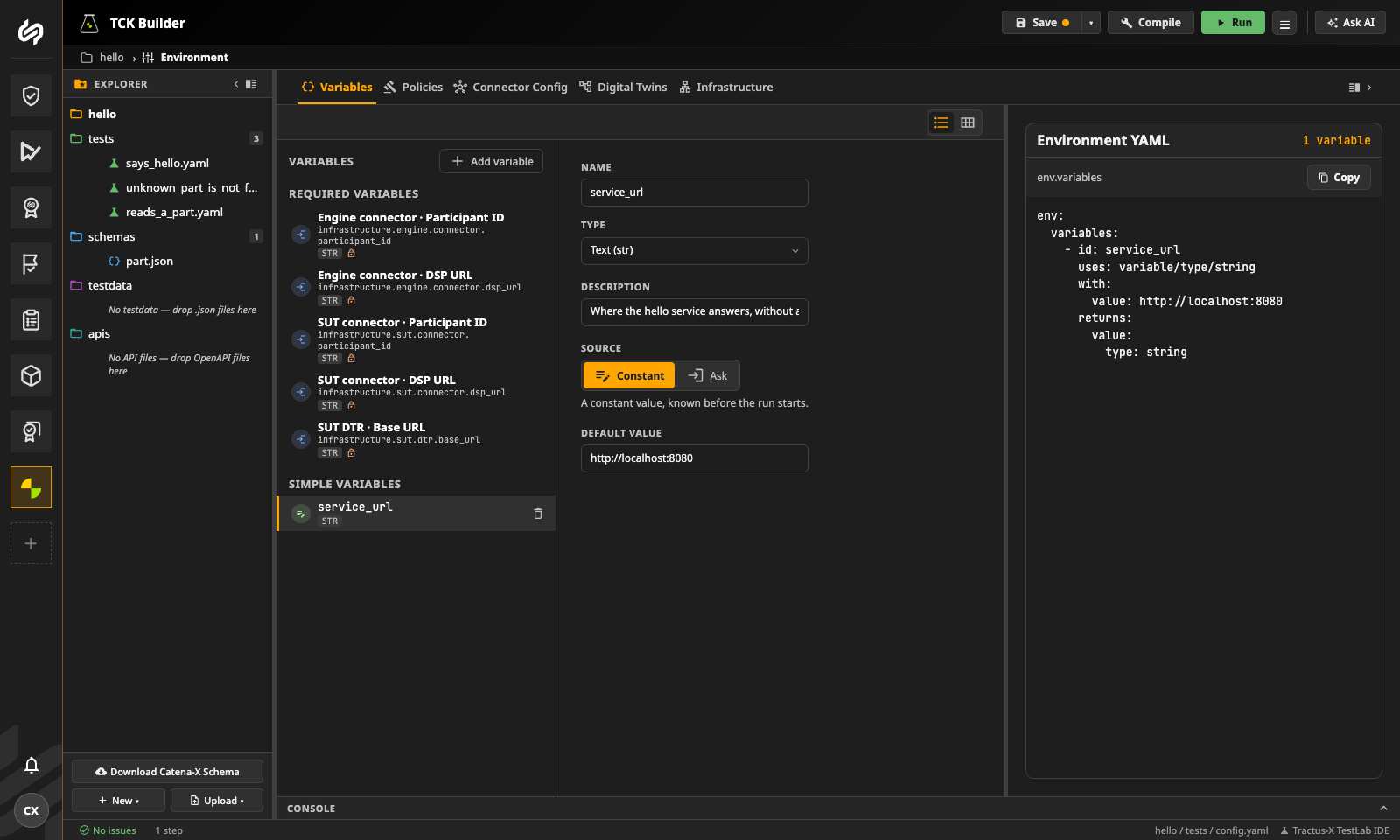
☰ → Environment → Variables. Click a variable to change its value.
Run
- Click Run and save the draft. Click Run again if it does not start.
-
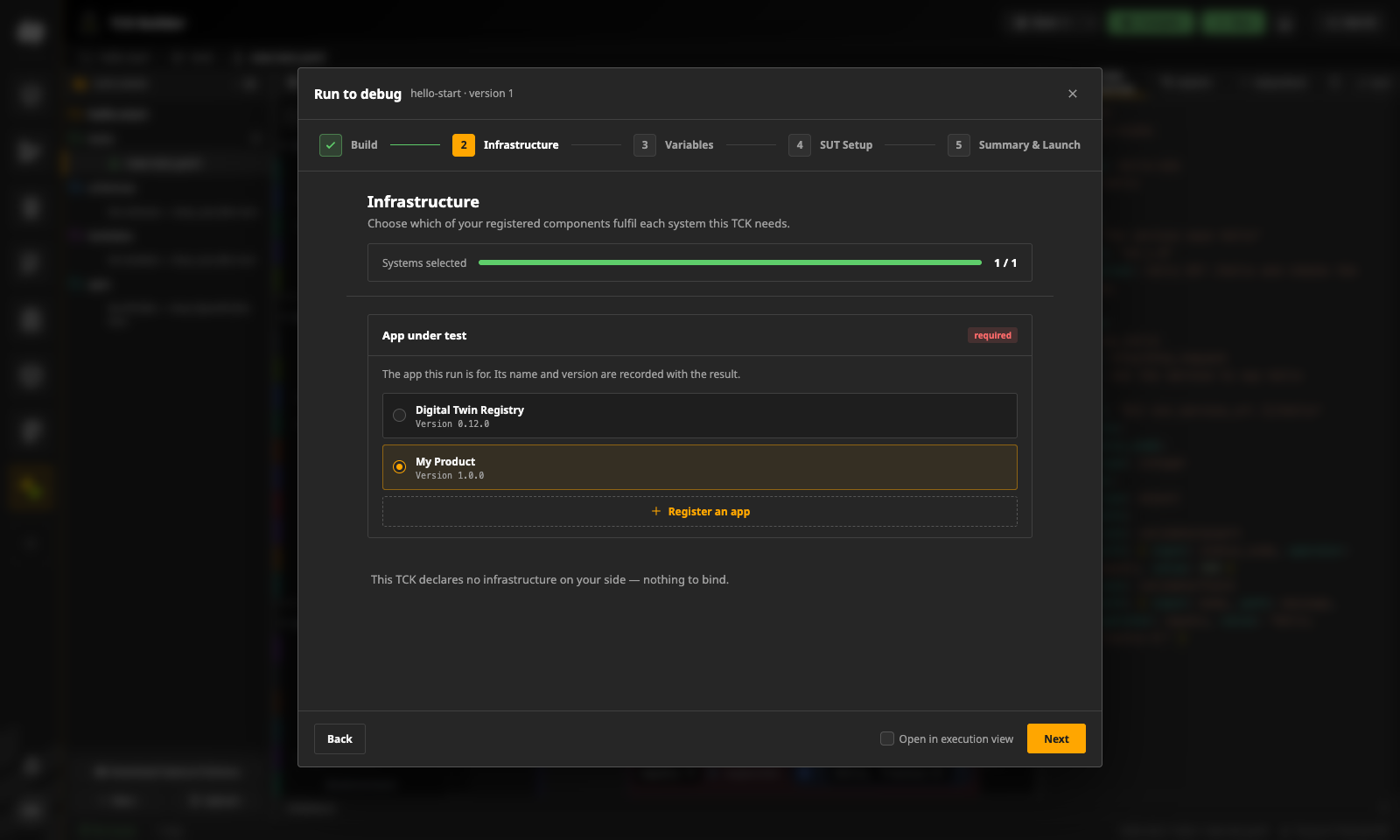
Under Infrastructure, pick the app under test and the connectors the test needs.
-
Click Next to Summary & Launch, then Run.
The result shows in the top bar (PASSED or FAILED) and in the console. Chapter 6 runs against real connectors.
Save and export
- Save keeps a version in your organization.
- ☰ → File → Export downloads the project as a ZIP: your repository's
tck/e2e(chapter 7).
The assistant
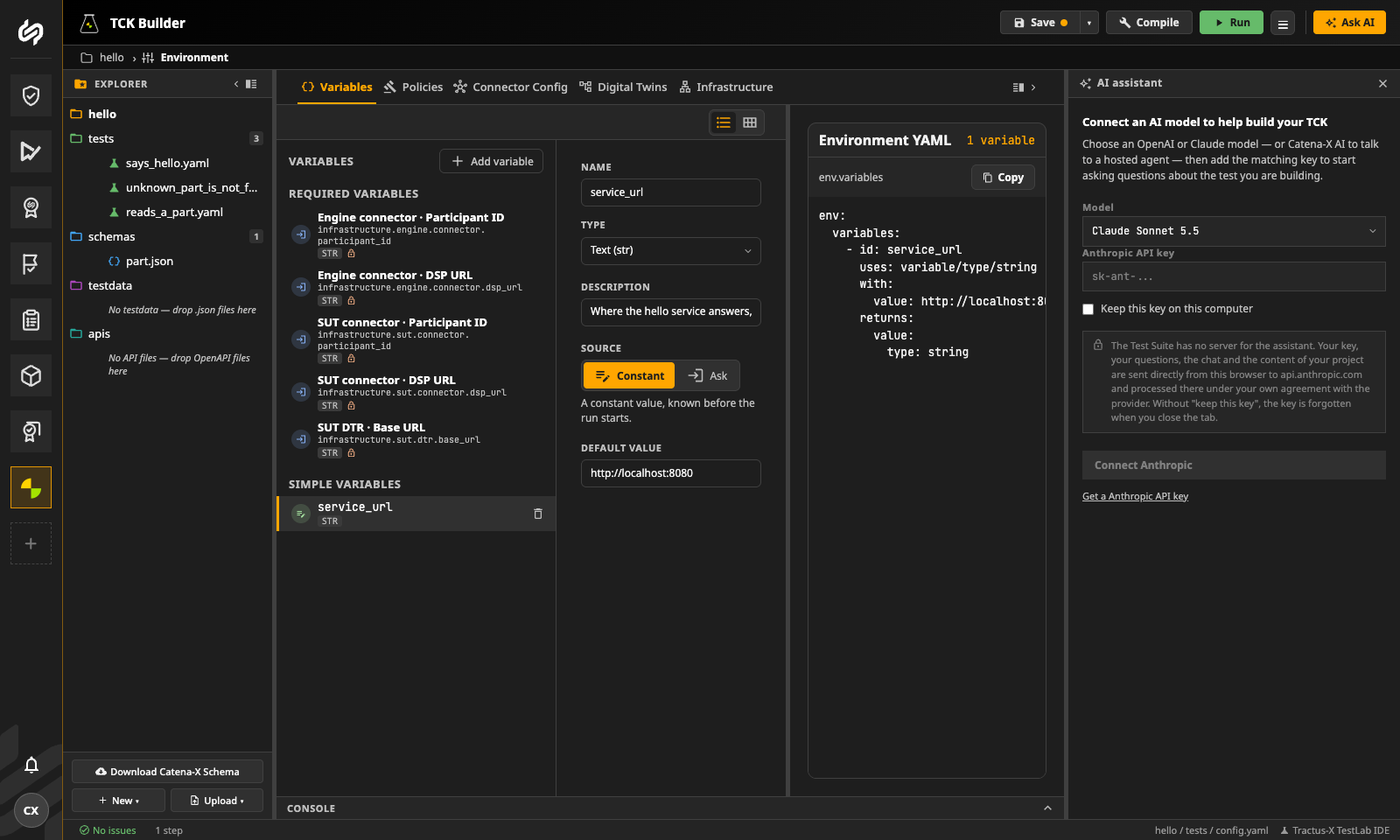
Ask AI opens the assistant. Your key goes from your browser straight to the provider. Chapter 4 connects it.
NOTICE
This work is licensed under the CC-BY-4.0.
- SPDX-License-Identifier: CC-BY-4.0
- SPDX-FileCopyrightText: 2026 Contributors to the Eclipse Foundation
- SPDX-FileCopyrightText: 2026 Catena-X Automotive Network e.V.
- SPDX-FileCopyrightText: 2026 LKS Next
- Source URL: https://github.com/eclipse-tractusx/tutorial-resources
 matbmoser
 CDiezRodriguez