Getting Started · chapter 5 of 9 · ● ● ● ● ● ○ ○ ○ ○
5 · Build the test with the assistant
Goal: a test project for your product that compiles. Time: 15 minutes
You say what must be proven. The assistant writes how. The Skeptic reads every line.
Steps
- Press Compile at the top. The template compiles as it is: you start from green.
- In the assistant panel, switch the mode to Plan. A plan changes nothing.
-
Paste starter prompt 1 and fill in your product, its repository and the scenario from the handout, box A. Send it.
Your product has an E2E spec? Attach its raw spec file and send the prompt from part 8 of the spec instead. The plan then follows the spec. 4. Read the plan. The Skeptic asks three questions:
Question A good plan says Does each test prove a promise? What the partner gets, not just "status 200" Is the negative test really a refusal? The exact answer the product must give Are addresses and BPNs variables? Nothing from your handout appears in a test -
Correct the plan in plain words until you agree with it.
- Press Carry out this plan. The assistant switches to Agent and writes the files.
- In the bar Changes by the AI assistant, press Review and read what changed. Undo file and Undo all put things back.
- Press Compile.
-
Not green? Send this, and repeat until it is:
-
Press Save, give the draft your product's name, and press Save draft.
You should now see
The message Compilation passed, and your tests in the explorer on the left.
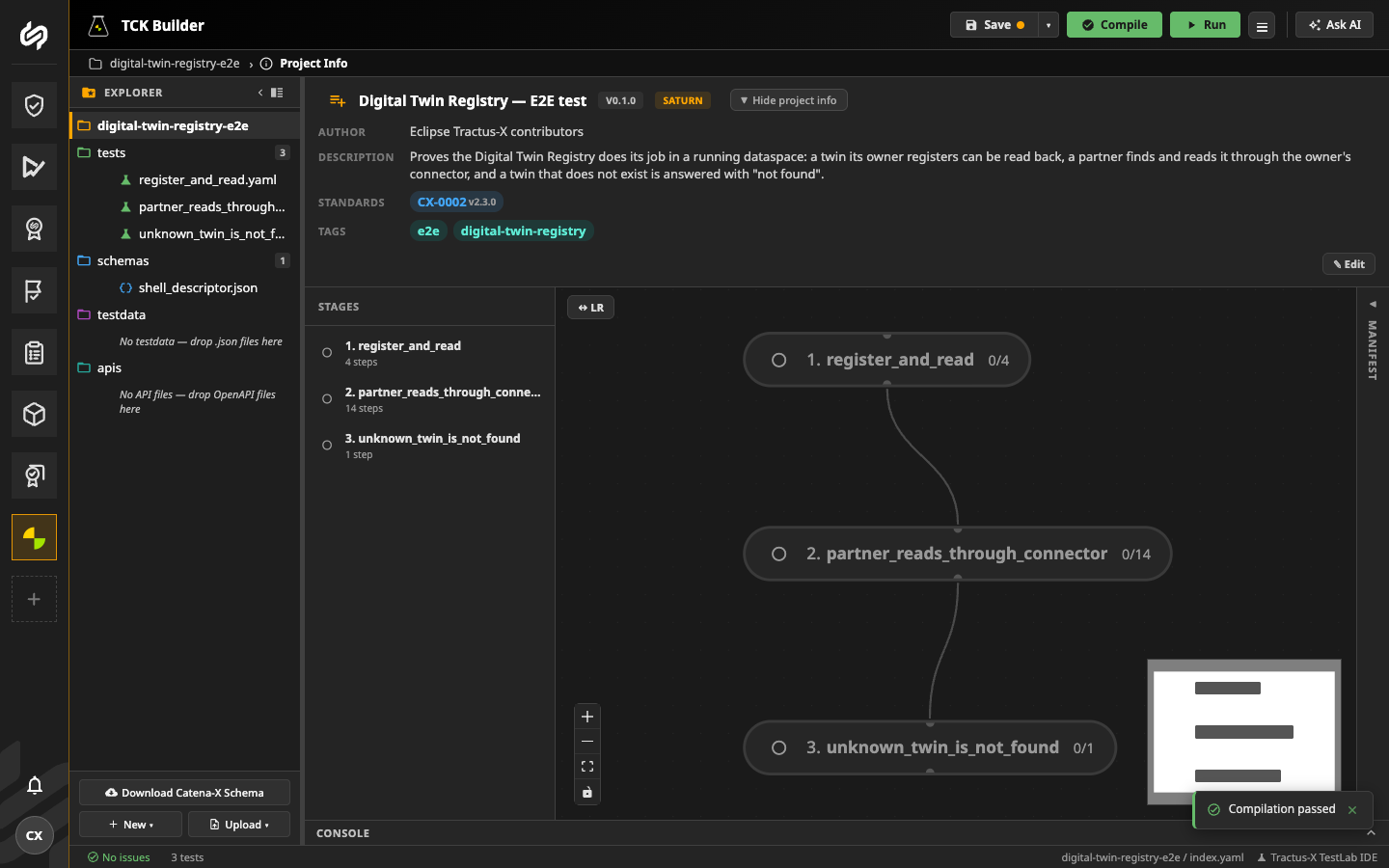
What the pilot team built
Three tests for the Digital Twin Registry: | Test | Kind | | --- | --- | | A registered twin can be read back and matches the AAS schema | Positive, contract | | A partner finds and reads the twin through the owner's connector | Positive, the journey | | A twin that does not exist is answered with 404 | Negative | Read them in the [worked example](../reference/worked-example.md).Note
On route B, with a local model: send one change per message and name the file in
each one, for example In tests/partner_uses_my_product.yaml rename the step
call_product to "Partner calls my product". A whole test in one message is too much for a
small model.
Tip
Stuck?
- The assistant invents steps: say
Use only steps from the block catalog. - Compile stays red after three rounds: switch to Ask, paste the finding and ask what the compiler expects there, before you let it edit again.
- Minute 30 and still red, or no model at all: press Undo all and change only the
names by hand. Click a file, open the YAML Editor tab, press Edit, replace
my-productwith your product's id andMy Productwith its name, and press Save. Do it inindex.yamland in both tests. A small green test beats a large red one. - More prompts: Starter prompts.
NOTICE
This work is licensed under the CC-BY-4.0.
- SPDX-License-Identifier: CC-BY-4.0
- SPDX-FileCopyrightText: 2026 Contributors to the Eclipse Foundation
- SPDX-FileCopyrightText: 2026 Catena-X Automotive Network e.V.
- SPDX-FileCopyrightText: 2026 LKS Next
- Source URL: https://github.com/eclipse-tractusx/tutorial-resources
 matbmoser
 CDiezRodriguez